This article explains how to enable and use the Receive OTP to Download Payslip option in HReasily, what employees will experience, and what validation messages can appear during the download process.
Why this matters: This feature supports a more secure approach to payslip access. Passwords for payslips must not be based on an employee's National ID or date of birth.
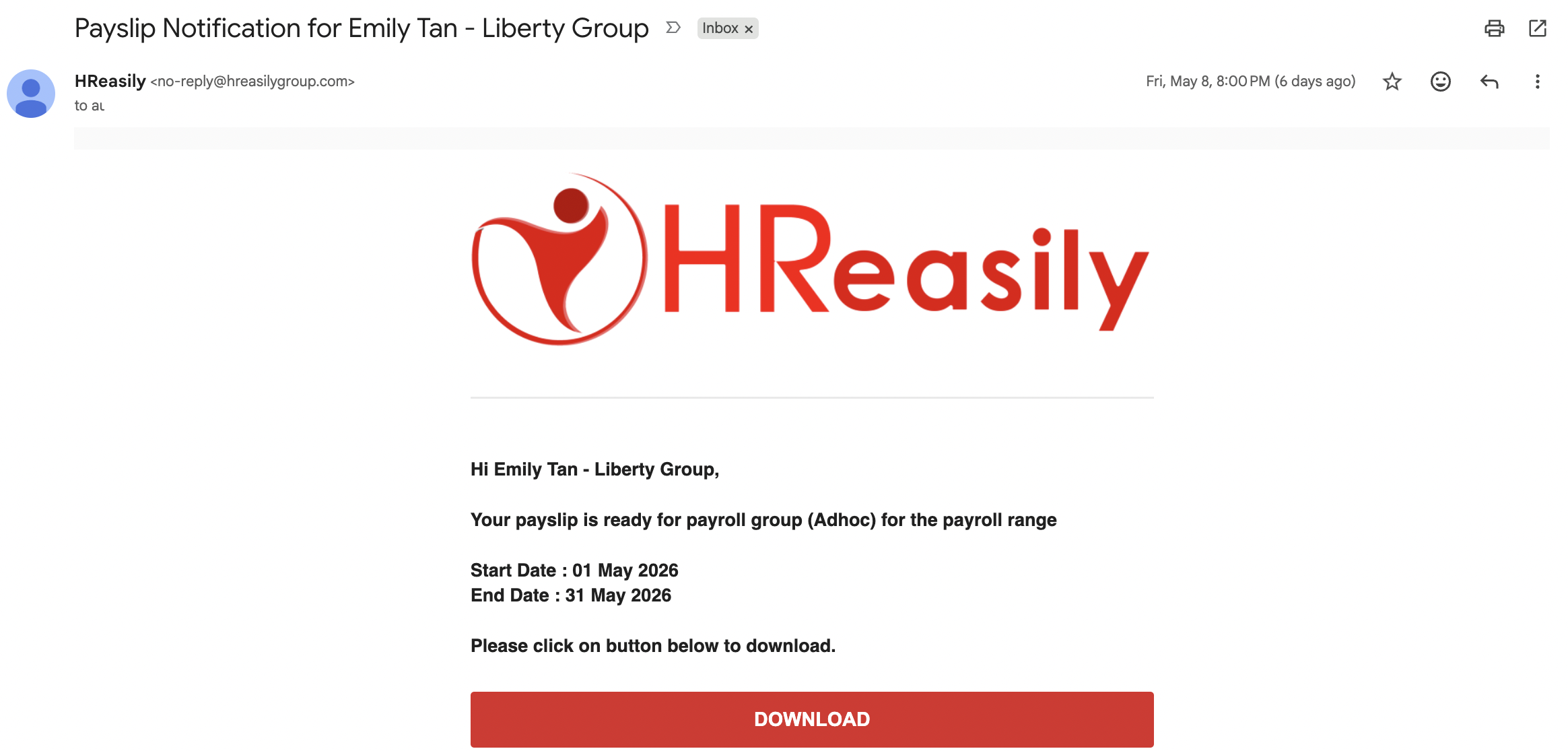
When this option is enabled, employees receive an email notification with a download link. To download the payslip, they must verify their identity with a one-time password sent to their registered email address.
Refer to the steps below to enable OTP for payslips.
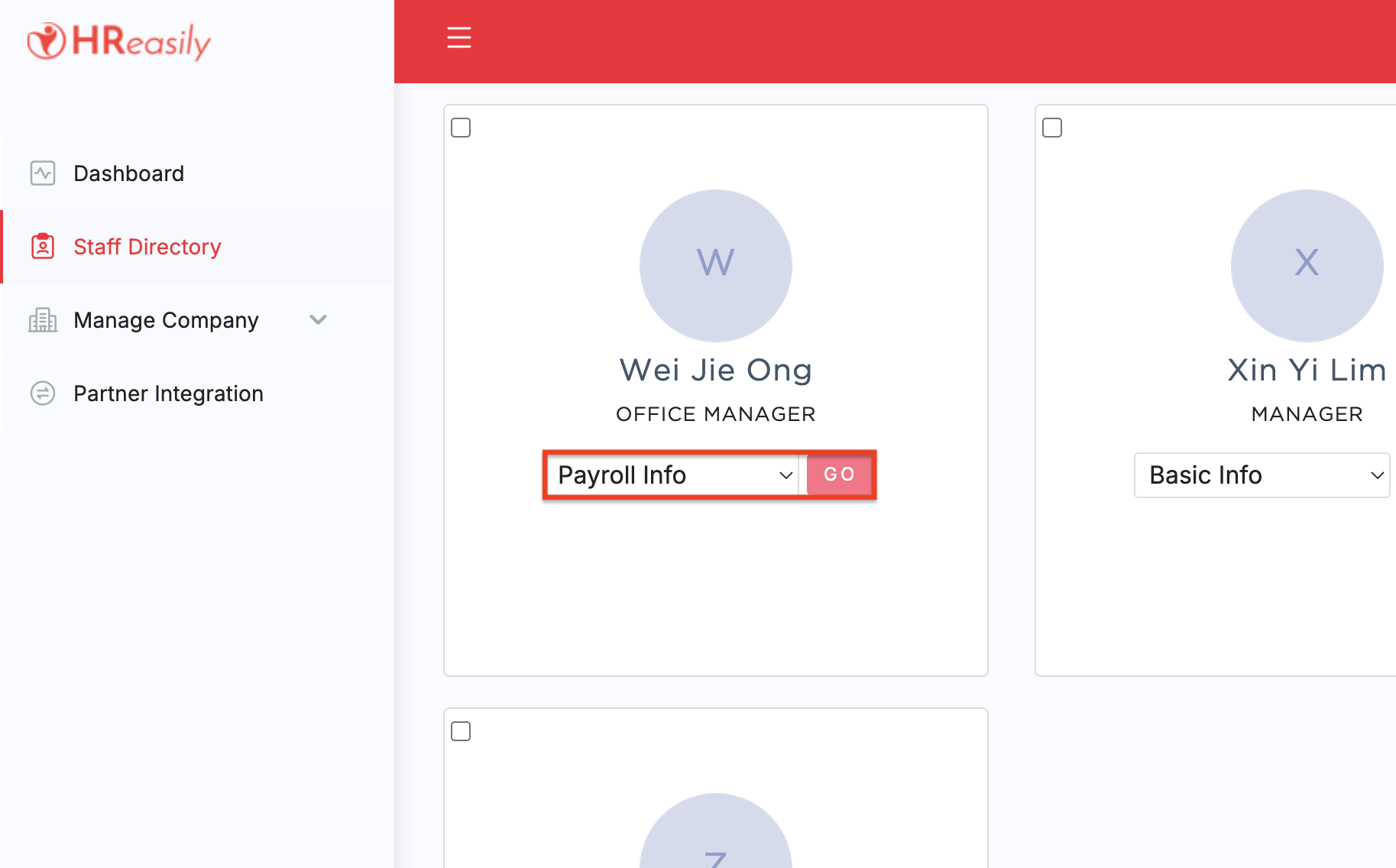
1. Go to Staff Directory. Locate the employee, open the dropdown menu, select Payroll Info, and click Go.
2. In the Employee Payroll Info page, click Edit.

3. Scroll to the Other Settings section. Under Payslip Email Notification, select Receive OTP to download Payslip.

Once enabled, the employee will receive a secure download link via email and must authenticate using a one-time verification code sent to their registered email address.
Steps to Download Payslips Using OTP
1. Open the payslip email and click Download.
2. You will be redirected to the OTP verification page.
- A countdown timer will be displayed.
- You can request a new OTP after 2 minutes if needed.
3. Check your email for the OTP, then enter the code in the provided field. The OTP is valid for 10 minutes.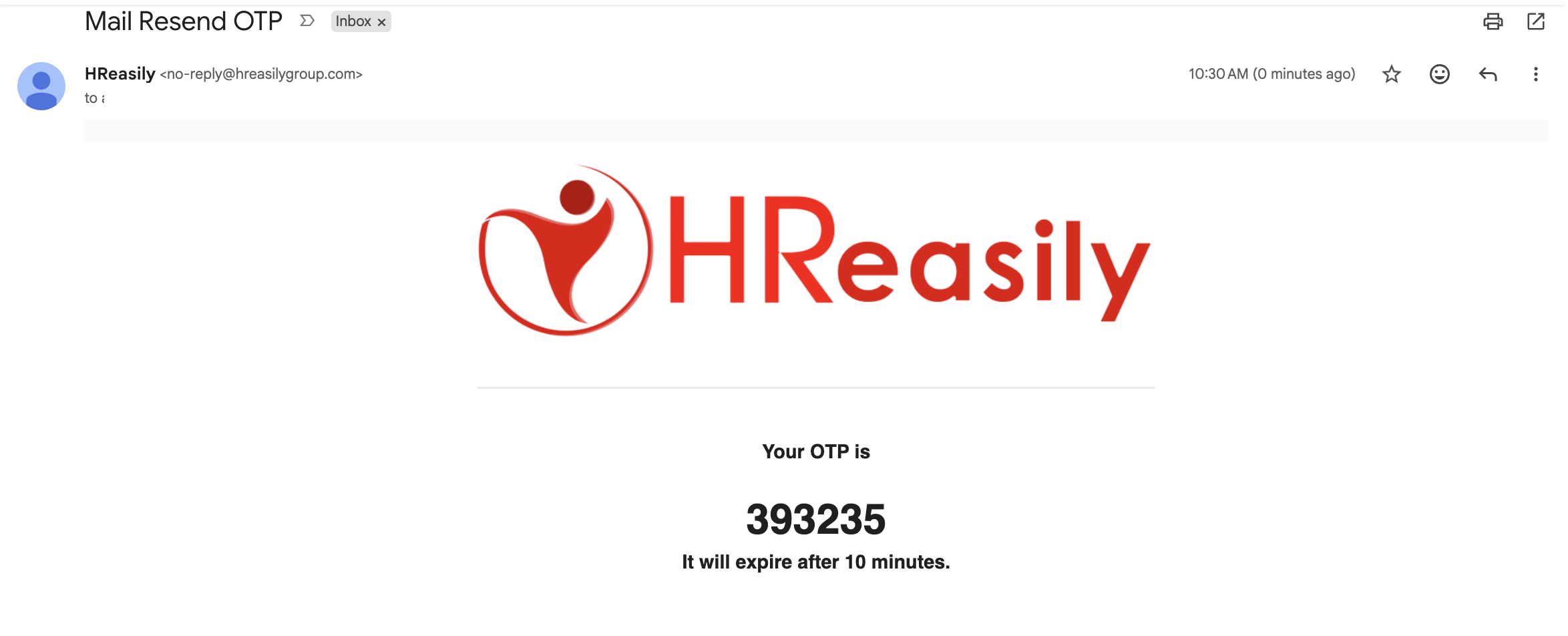
4. Upon successful verification, the payslip will be available for download and a confirmation message will be shown.

Troubleshooting
1. Employee did not receive the OTP email
Proceed to wait until the 2-minute resend timer finishes, then click Get another OTP. Also confirm they are checking the correct registered email inbox.
2. Employee says the OTP does not work
Confirm whether the OTP has expired. OTPs are valid for 10 minutes only. If expired or entered incorrectly 3 times, the employee must request a new OTP.
3. Payslip did not download after verification
Retry the process using the latest OTP. If the issue continues, verify that payroll was approved and that the download link was opened from the most recent email.
Was this article helpful?
That’s Great!
Thank you for your feedback
Sorry! We couldn't be helpful
Thank you for your feedback
Feedback sent
We appreciate your effort and will try to fix the article