When multiple employees share the same approver, duplicate approval tasks can be consolidated into a single approval step in the approval flow. This allows the same approver to approve a request only once instead of approving it multiple times.
Follow the steps below to enable this setting in the approval workflow.
Configure Duplicate Approval Consolidation
1. Navigate to Company > Approval and Notification > Approval and Notification Settings.
2. Under the Approval and Notification Templates tab, click the three-dot menu on the relevant template and select Edit.
Alternatively, click Create New Template to configure a new template.
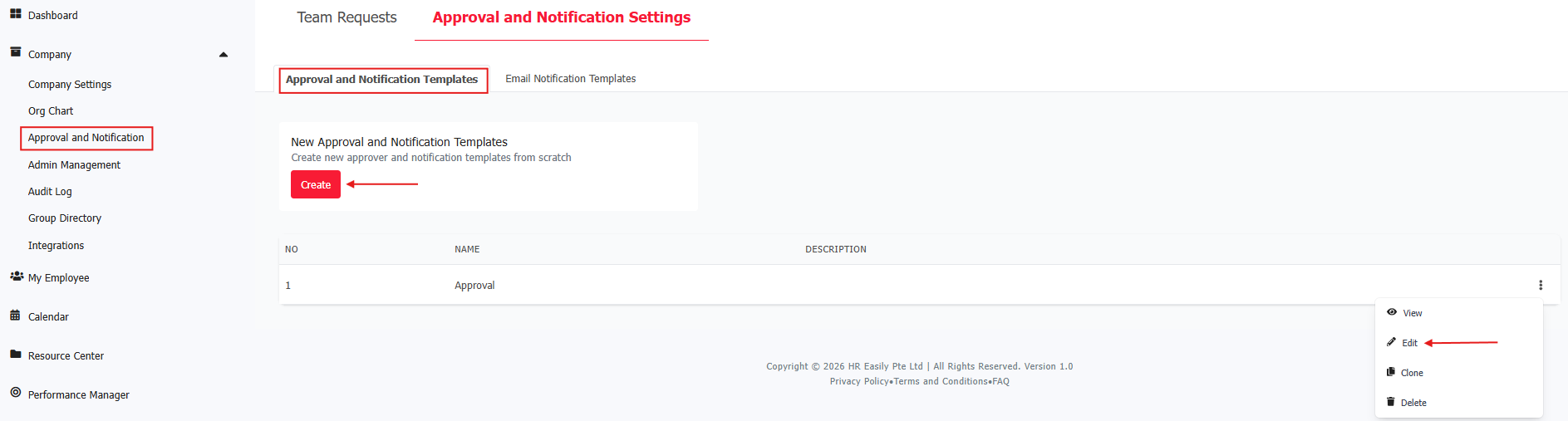
3. Complete all required information and configure the approval flow settings as needed.
4. Scroll down to Other Settings (Optional).
5. Check the box for Merge duplicate Approvers to one step in the Approval Flow.
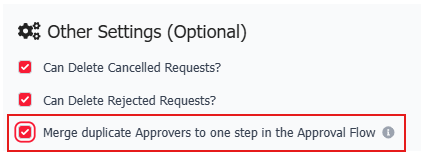
Note: If the same approver appears more than once in the flow, only their first step is kept and the later duplicates are removed — they approve once.
Example:
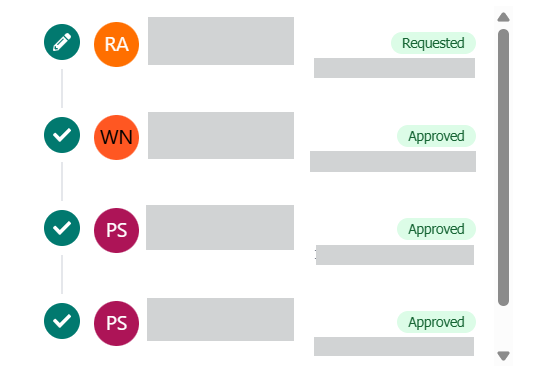
Before consolidation: A → A → B → C → A
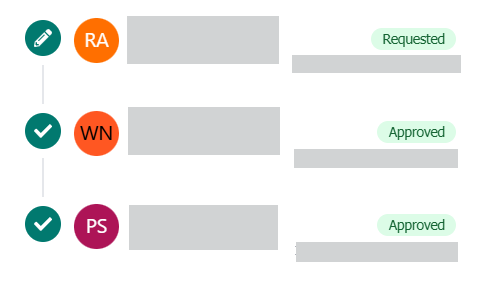
After consolidation: A → B → C
Only the first approval step assigned to Approver A is retained.
6. Review the settings and click Save at the bottom of the page to apply the changes.
After enabling this setting, approvers who previously needed to approve the same request multiple times will only need to approve it once. This helps simplify the approval process and reduces duplicate approval tasks.
Example of Approval Flow Before and After
Before enabling the setting
After enabling the setting
Was this article helpful?
That’s Great!
Thank you for your feedback
Sorry! We couldn't be helpful
Thank you for your feedback
Feedback sent
We appreciate your effort and will try to fix the article