1. Go to HSBCnet login page, login using your username:

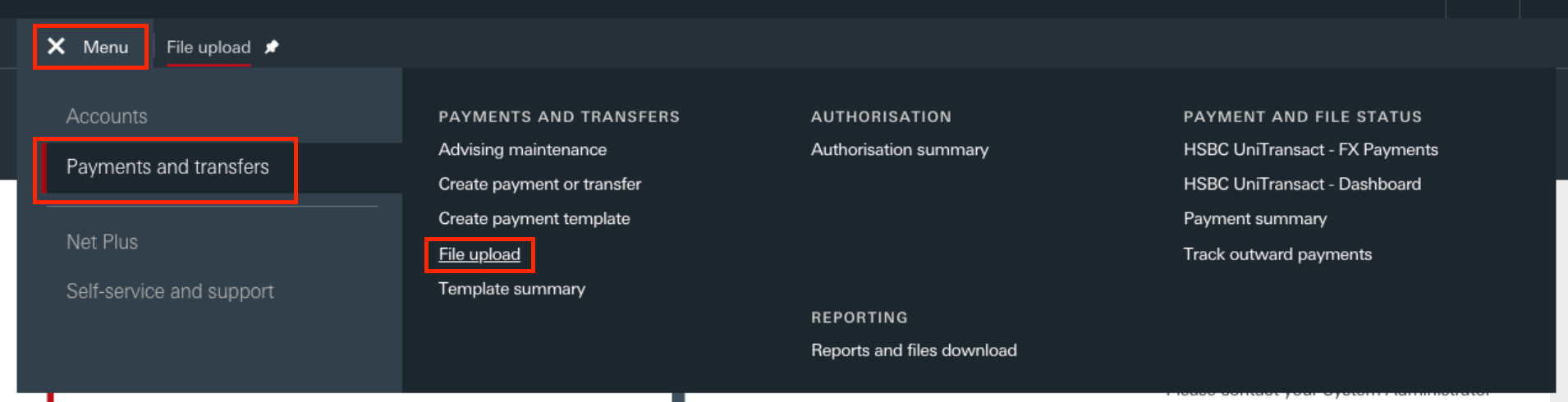
2. Go to "Menu", "Payments and Transfers" and "File upload".
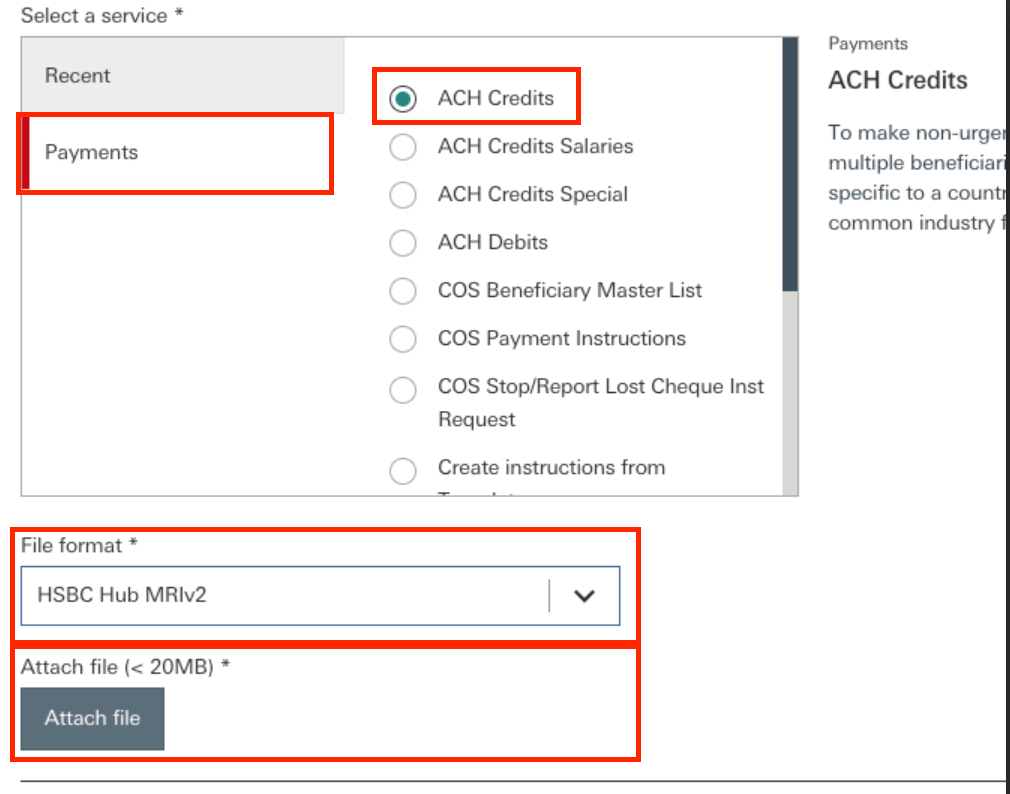
3. Next, under "Select a service", click "Payments", and choose "ACH Credits". Under the File format, choose "HSBC Hub MRIv2". Next, upload the GIRO file generated from HR Easily Pro and click "Authentication".
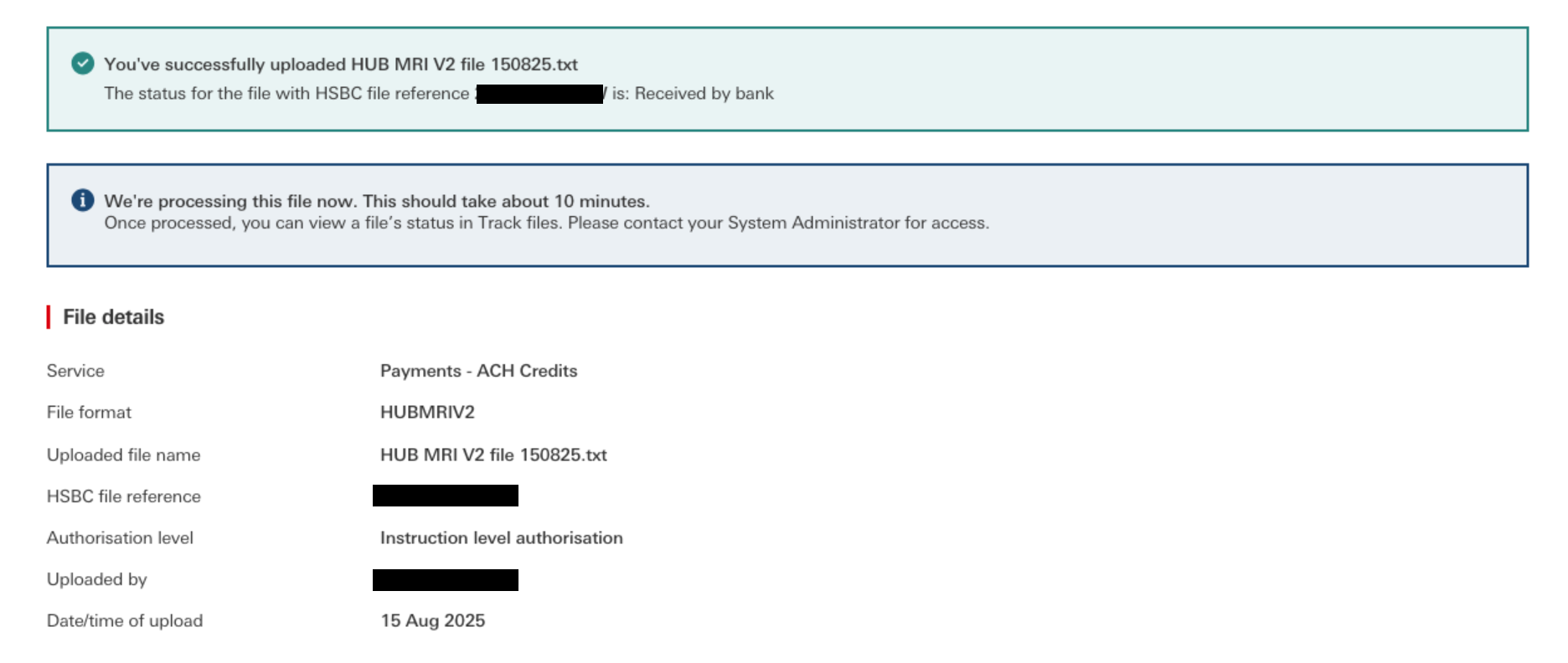
4. Upon successfully uploading the file, you will see the page below:
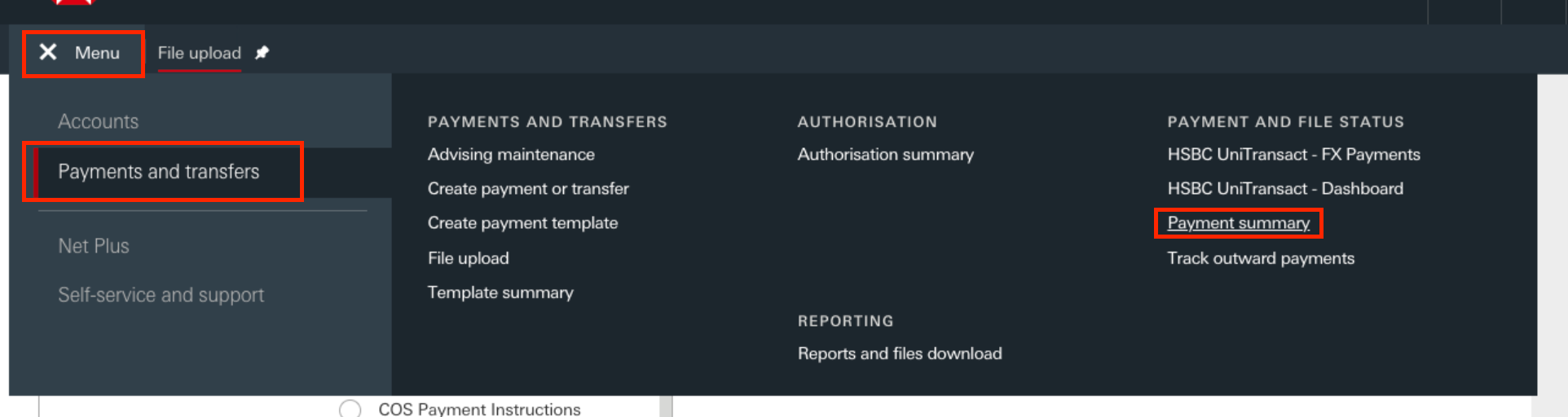
5. To check the status of the file, go to "Menu", "Payments and Transfers" and "Payment summary".
6. Under "Type", select "ACH" and under "Status Summary", click "Pending" / "Received or processed".

Was this article helpful?
That’s Great!
Thank you for your feedback
Sorry! We couldn't be helpful
Thank you for your feedback
Feedback sent
We appreciate your effort and will try to fix the article