Follow the steps below to generate and submit your MPF records via eMPF:
1. Navigate to Manage Company > Payroll.
2. Scroll down to the eMPF Submission section and click to expand it.

3. Click Create to start a new eMPF submission.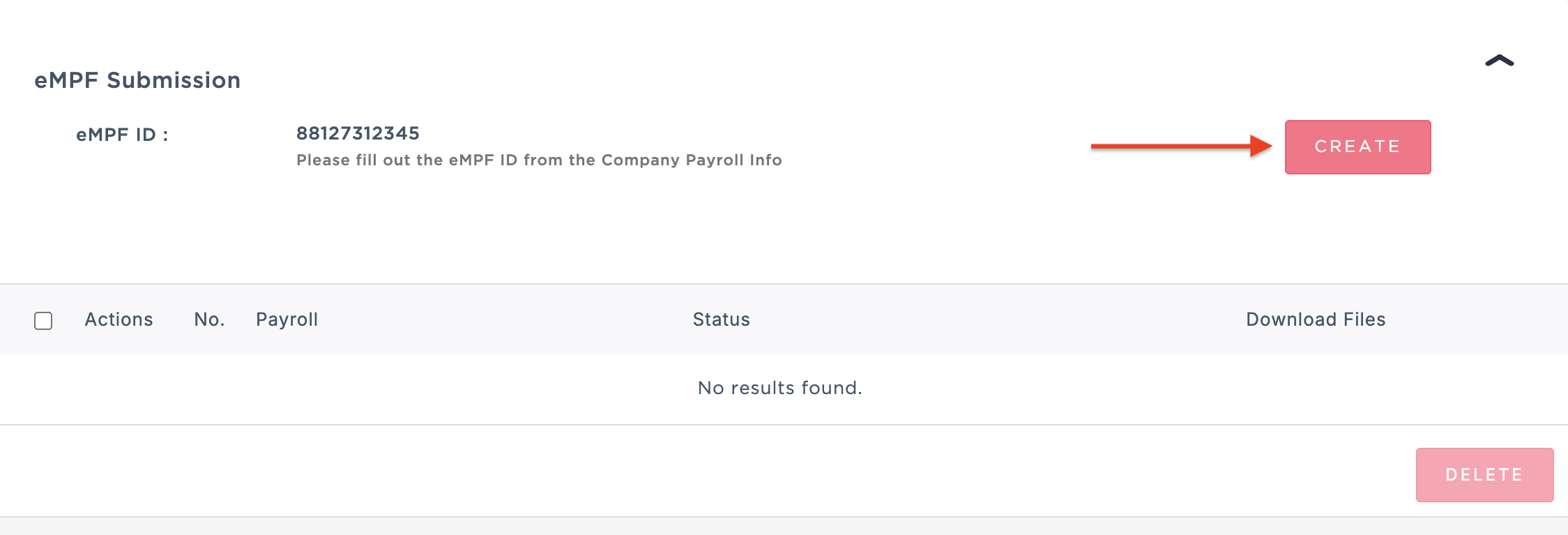
4. Select the relevant payroll you wish to generate MPF for, then click Save.
5. Complete all mandatory fields. You may click the "?" icon beside each field to view detailed explanations and field mappings. Once all required information is filled in, click Save.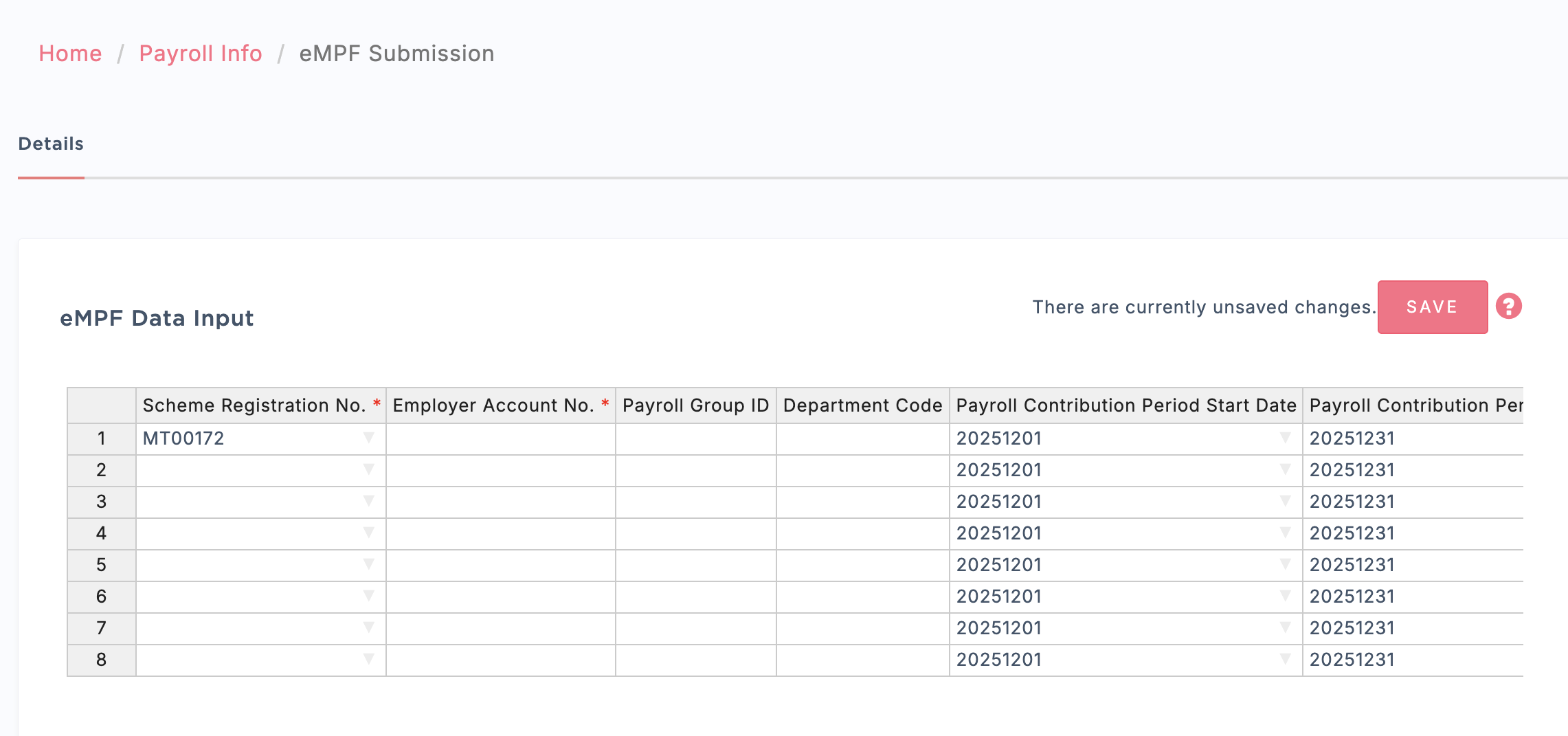
6. You will then be redirected back to the Payroll page. The eMPF submission will be created with the status Ready.
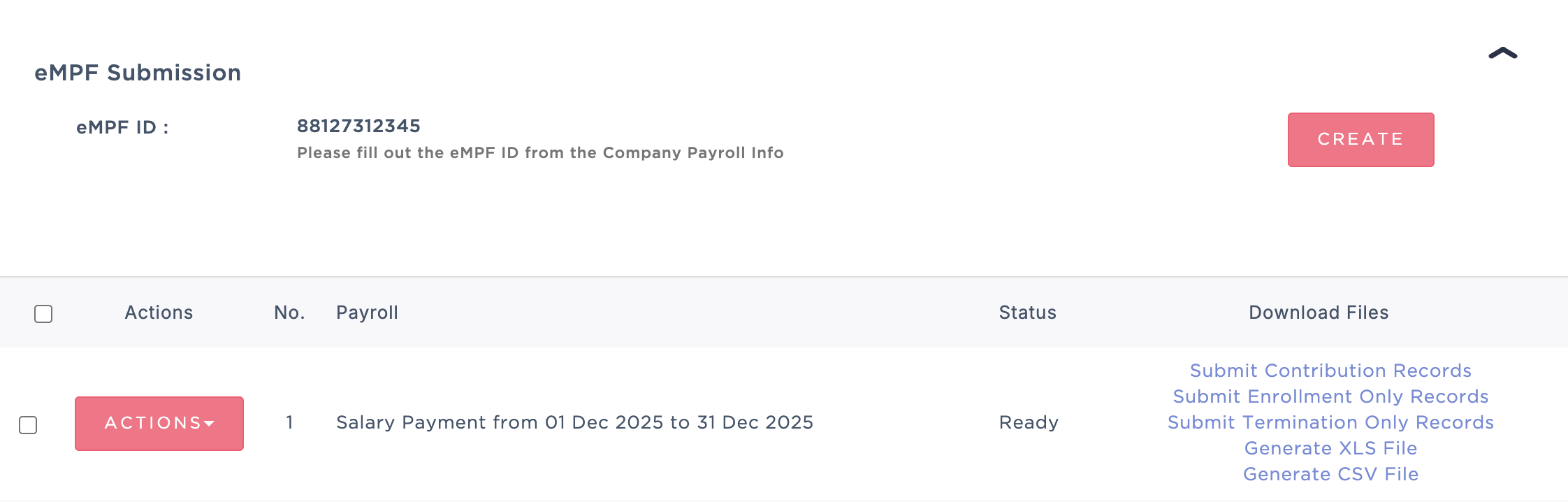
7. Click Submit Contribution Records, Submit Enrollment Only Records, or Submit Termination Only Records. You will be redirected to the authentication process to proceed with the submission.
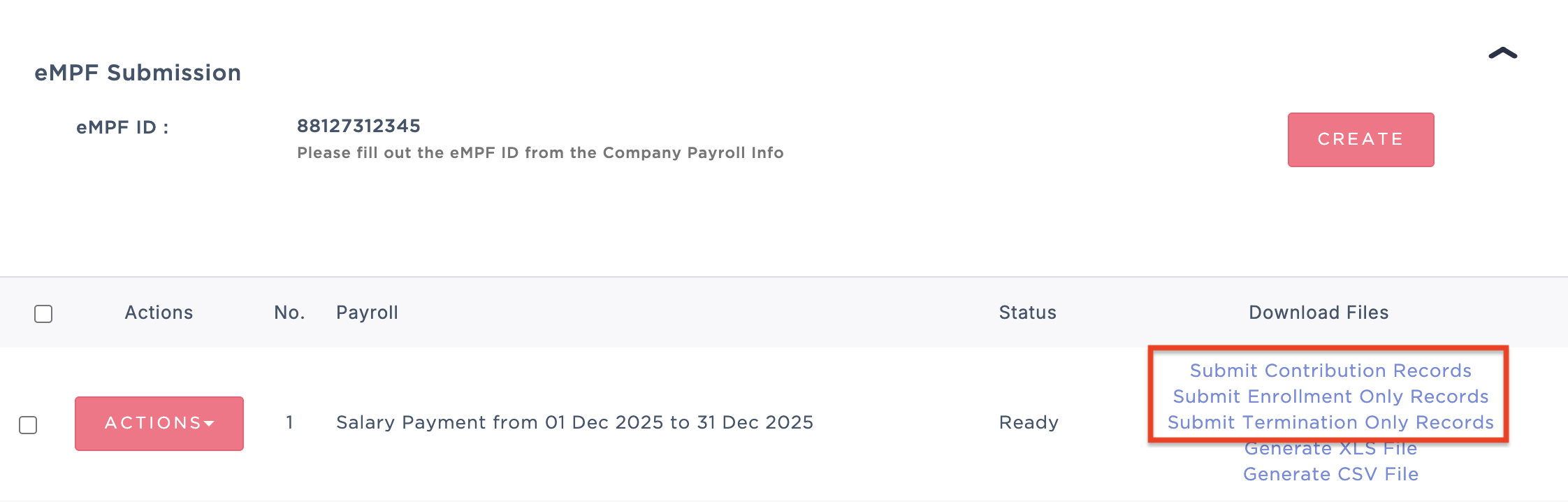
You will be redirected to the authentication process to proceed with the submission.
8. Upon successful submission, the status will be updated to Processed.

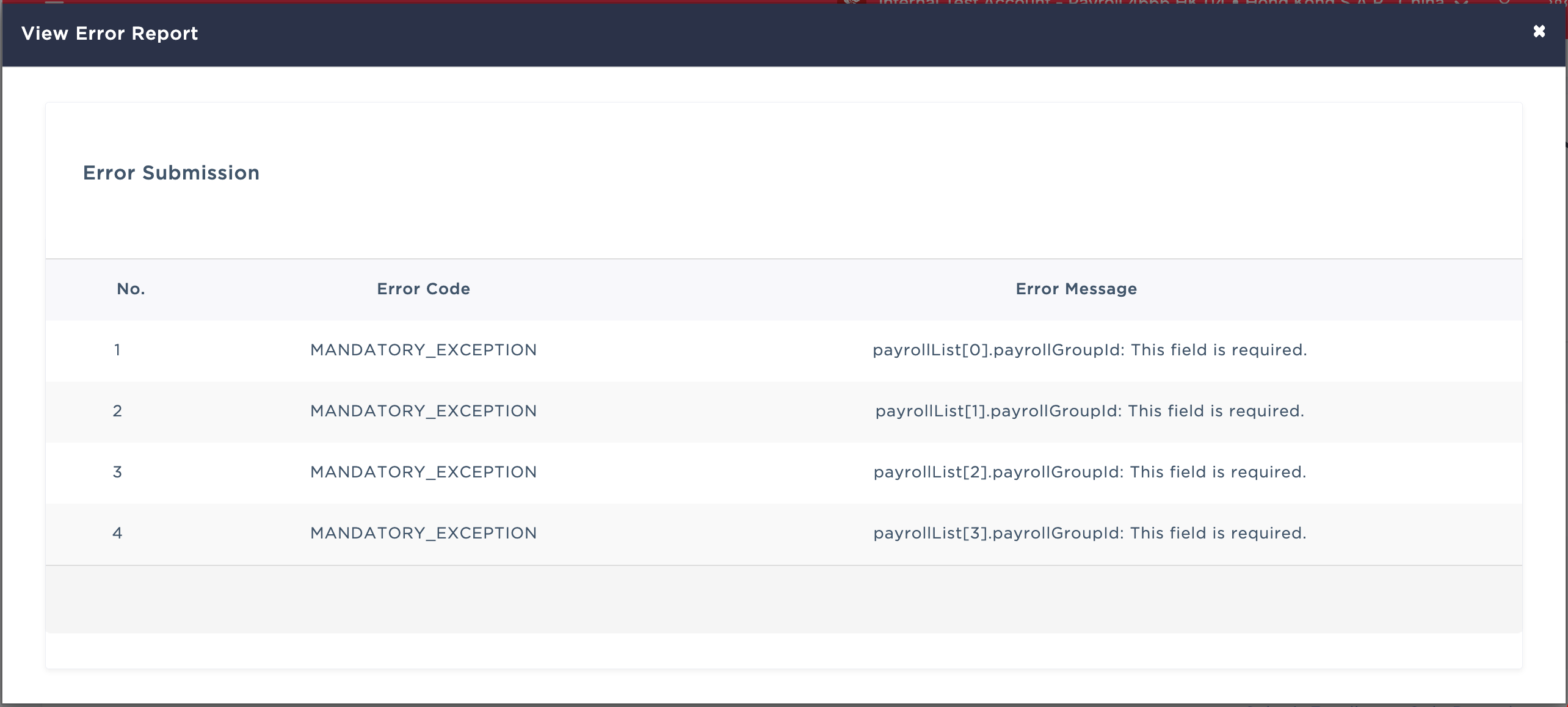
9. If the submission fails, an Error Report will be available for review. You may correct the errors and resubmit accordingly.
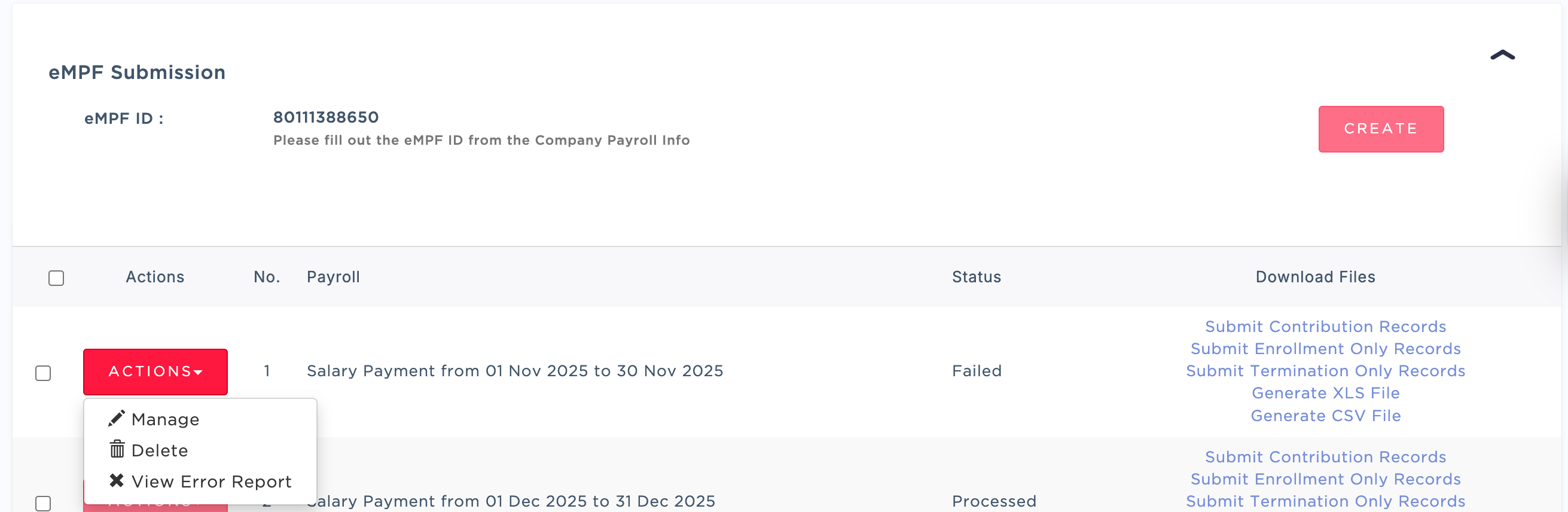
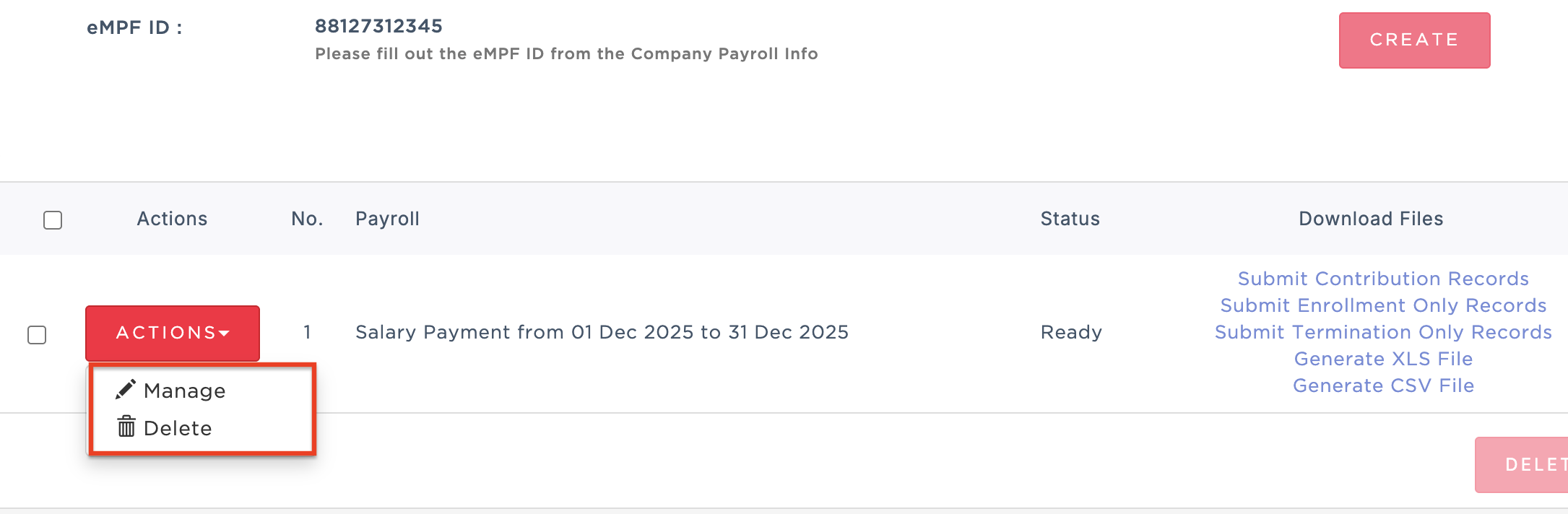
10. To manage the submission, click Actions next to the record and select:
Manage to edit the submission details, or
Delete to remove the submission entirely.
Was this article helpful?
That’s Great!
Thank you for your feedback
Sorry! We couldn't be helpful
Thank you for your feedback
Feedback sent
We appreciate your effort and will try to fix the article