The Employee Welfare Fund (EWF) contribution can be configured for individual employees or updated for multiple employees using the Bulk Import function in the payroll system.
Follow the steps below to enable, update, or disable an employee’s EWF contribution.
1. Configure for an Individual Employee
1. Navigate to My Employees > Select the employee > Payroll tab.
2. Under Salary Contribution, click Edit.
3. Scroll down and check the box for Does the employee need to pay Employee Welfare Contribution?
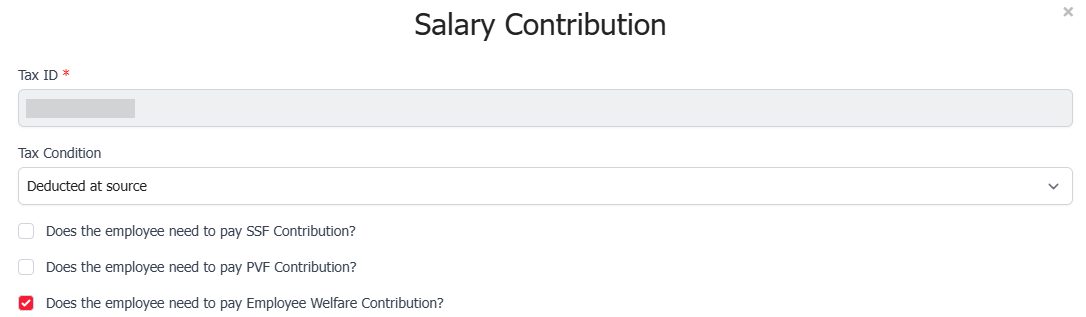
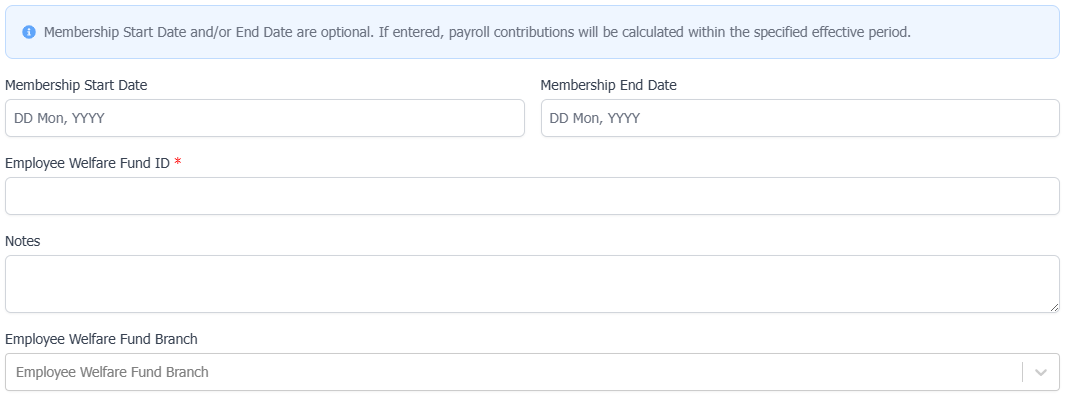
4. Complete the EWF details:
Membership Start Date: Optional. Enter the date from which the EWF contribution should apply.
Membership End Date: Optional. Enter the date until which the EWF contribution should apply.
Employee Welfare Fund ID: Enter the employee's EWF membership ID.
Notes: Add any relevant notes, if applicable.
Employee Welfare Fund Branch: Select the applicable EWF branch.
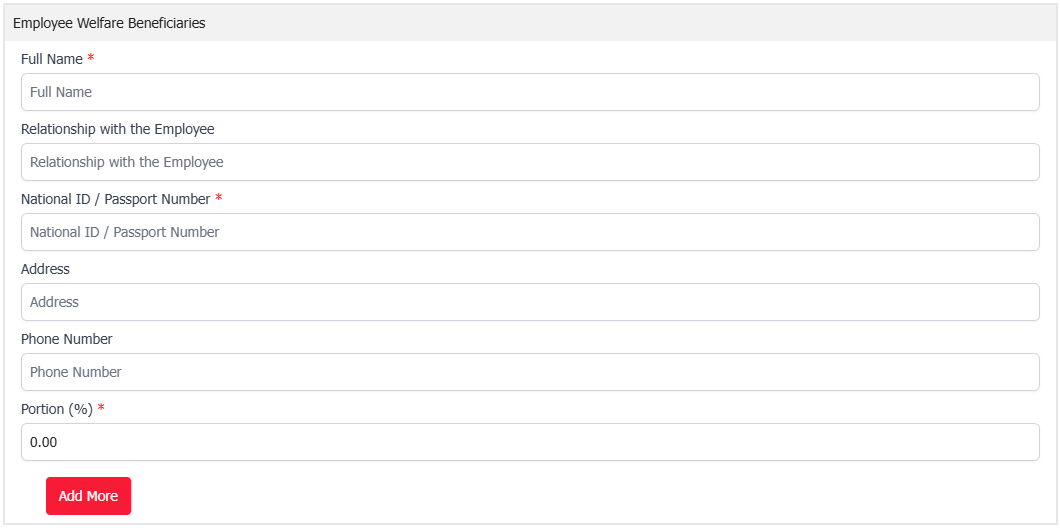
5. Under Employee Welfare Beneficiaries, enter the required beneficiary information.
Note: Click Add more if you have multiple beneficiaries.
6. Review the information and click Save at the bottom of the page to apply the changes.
2. Configure EWF for Multiple Employees Using Bulk Import
1. Navigate to My Employees > Add User > Bulk Import.
2. Under Field Group, select Payroll. Under Type, select Template with existing employees data.

3. Select All employees or choose specific employees you want to update.
4. Scroll down and click Generate Template.

5. Open the downloaded file and scroll to the Does the employee need to pay Employee Welfare Contribution column.

6. In the dropdown, select:
True to enable the EWF contribution.
False to disable the EWF contribution.

7. Complete or update the relevant EWF fields in the subsequent columns, as applicable:
- EWF ID No.
- EWF Membership Start Date
- EWF Membership End Date
- EWF Note
- Welfare Fund Branch
- EWF Beneficiary Full Name
- EWF Beneficiary Relationship with the Employee
- EWF Beneficiary National ID or Passport No.
- EWF Beneficiary Address
- EWF Beneficiary Phone Number
- EWF Beneficiary Portion
8. Save the completed file.
9. Return to the Bulk Import page and click Click here to upload files, or drag and drop the file into the upload area.

10. Review the Validation Preview to ensure the information is correct, then click Save & Complete to finish the import.
Tip: Before saving, double-check that the employees’ other Salary Contribution details are up to date to help prevent payroll calculation discrepancies.
Was this article helpful?
That’s Great!
Thank you for your feedback
Sorry! We couldn't be helpful
Thank you for your feedback
Feedback sent
We appreciate your effort and will try to fix the article